
01 / Prepare
Set up the estate
Edit drives, pegs, routes and annotations. Import or export an estate pack, set zone rules and install your licensed offline map tiles before heading out.
How it works
Set up the estate, check in the team and run the day from the keeper console. Here is what KeeperView includes.
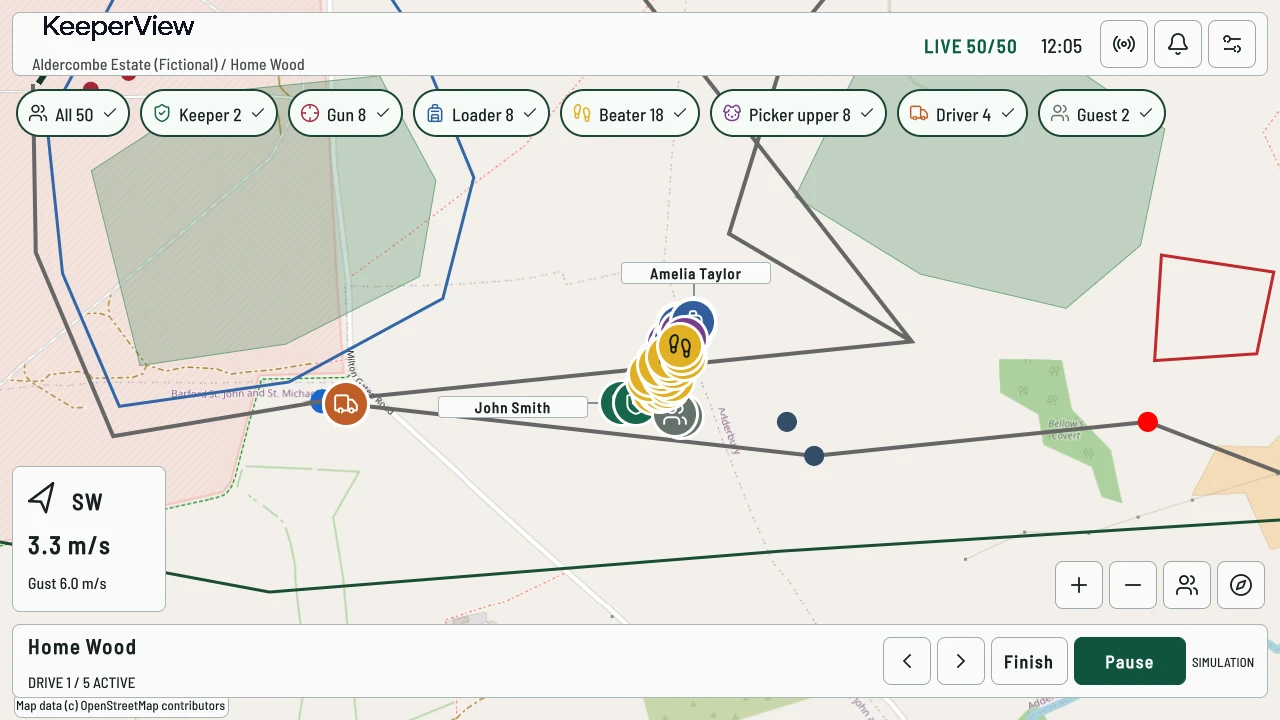
01 / Prepare
Edit drives, pegs, routes and annotations. Import or export an estate pack, set zone rules and install your licensed offline map tiles before heading out.
02 / Check in
Check in participants, assign roles and pair people with tracking devices. Attendance and tag assignment are managed separately.
03 / Run drives
Select a drive, see participant positions and check wind and connection status. Prepare, start, pause, resume, finish or skip a drive from the console.
04 / Respond
Inspect tracking, connectivity and SOS alerts. Locate the relevant participant and acknowledge or resolve events through the operational workflow.
05 / Finish
Check unfinished drives, open attendance, assigned tags and unresolved critical alerts before closing. An override records the operator and reason. Saved-day summaries keep the totals and drive timings together.
06 / Review
Open a recording, change playback speed and inspect participant movement. Check saved-day summaries and the operational log for attendance changes, drive transitions and alert actions.
People and equipment
Check people in and out, assign their roles and pair them with tags. Filter the roster to find someone, or open the inventory to see which devices are assigned and which are available. Returning a tag does not check a person out.
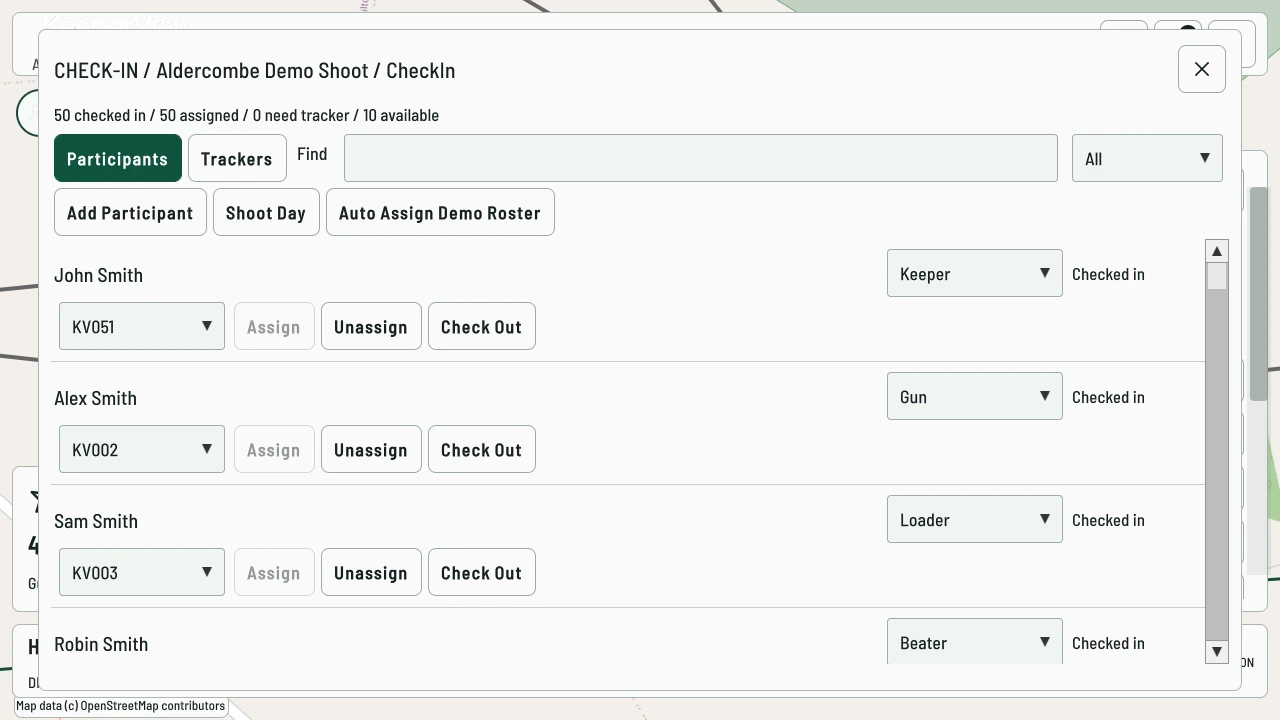
Keepers, guns, loaders, beaters, picker-uppers, drivers and guests each have a role on the map and in the roster.
Track assignments and returns without losing the attendance record.
Prepare and run drives, pause when needed and check outstanding items before completing the day.
Estate setup
Edit drive boundaries, pegs, routes and annotations. Import and export KeeperView estate packs or supported GeoJSON geometry, then review the draft before applying it.
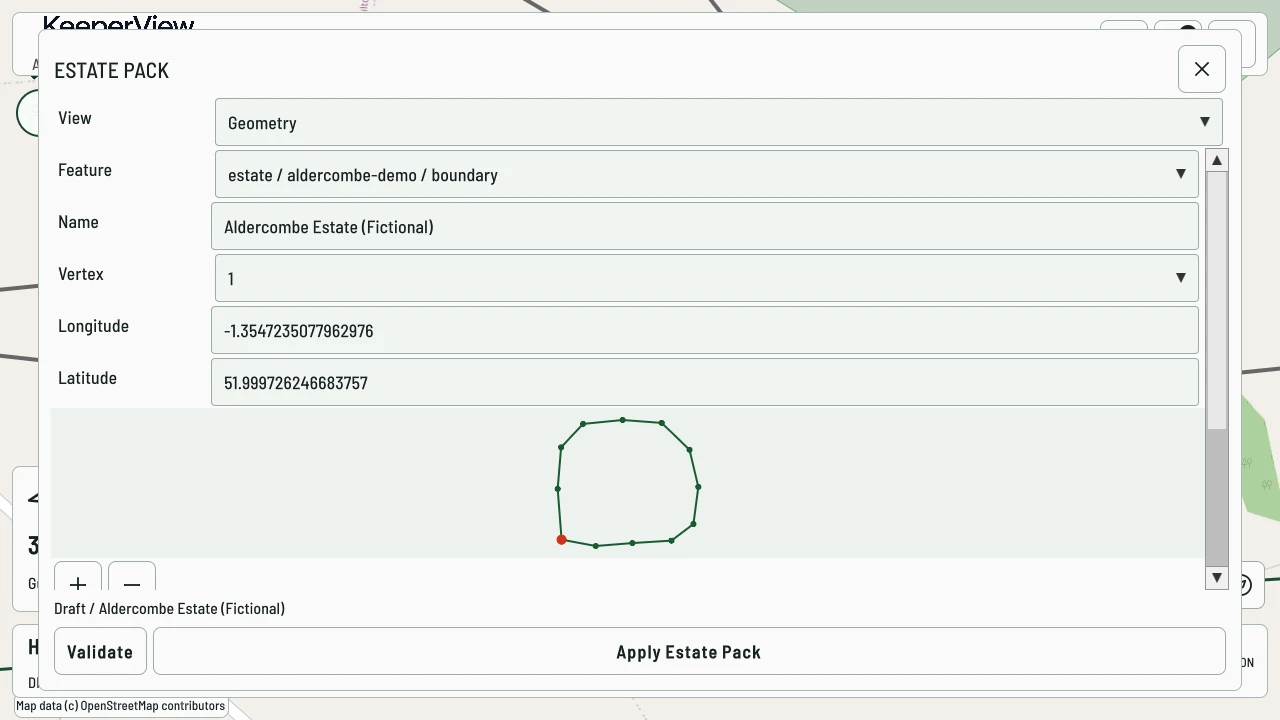
Configure zones, choose the roles they apply to and set the alert policy for each area.
Install and check your licensed XYZ map tiles locally. Prepare the areas you need before leaving internet coverage.
Save versioned estate packs and exchange supported geometry. Map tiles are supplied separately, under your map provider's terms.
The live map
Filter by role, select a participant and centre the map on their position. The detail drawer shows the latest available fix, its age and accuracy, device status and a short movement trail.
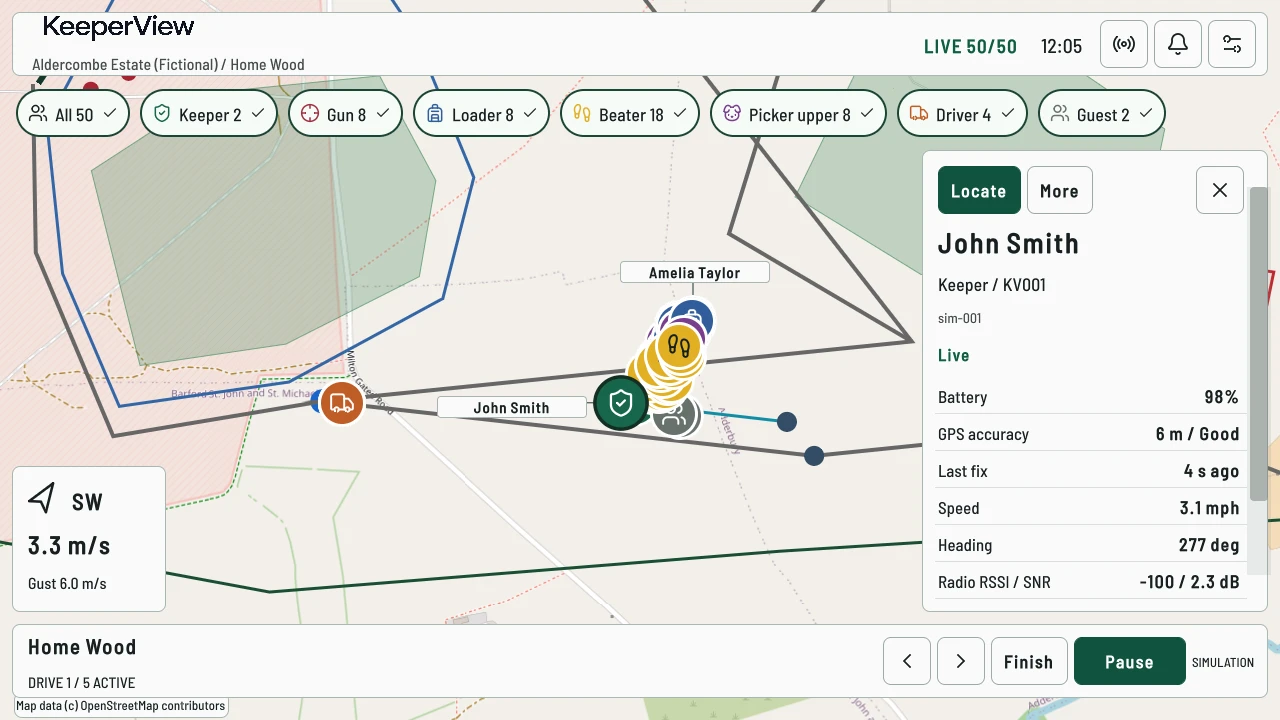
Pan, zoom and choose north-up or heading-up. Labels adjust with map density so crowded areas stay readable.
Check available wind readings and connection status alongside the map. Position age helps distinguish a recent report from an old fix.
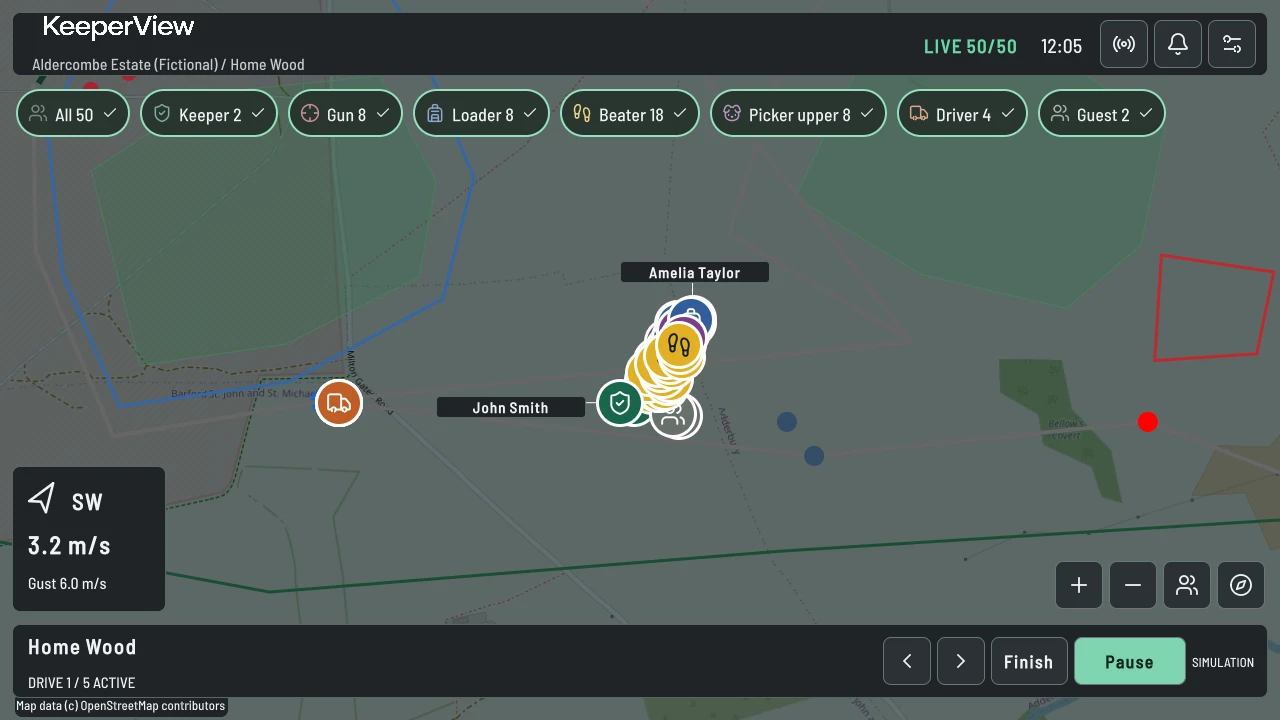
Switch the console display between light and dark themes.
Alerts
Open tracking, connectivity, zone and SOS alerts, then locate the participant involved. Acknowledgements and resolutions record the operator and time; a resolution can include a note. From a participant's details, you can also mark an incident at their last-known position.
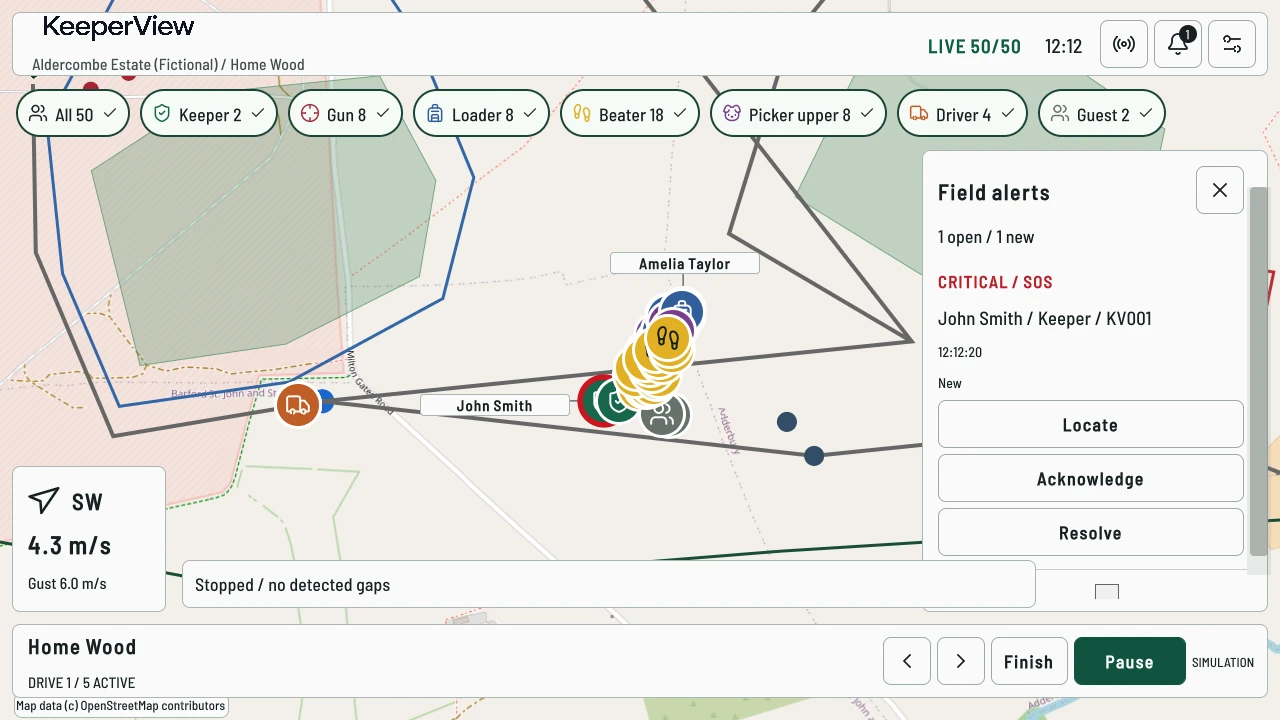
An acknowledgement is not a resolution. KeeperView supports your existing procedures; it does not replace radios or emergency services.
Display settings
Switch between day and night colours without changing the map, filters or current drive.
Local operation
Core local operation does not require a cloud connection. Saved active-day state supports an explicit resume after a restart, and recordings can be kept locally for review.
Use the local session or connect the console to a local Edge service. Link status shows when the source is disconnected.
Set separate retention periods for operational records, resolved alerts, technical metrics and recordings. Expired records are identified in saved views.
Inspect report counts, fix quality and connection information when investigating missing or stale positions.
Uncached map areas still need an internet connection. Radio coverage depends on the field equipment and the estate.
Practice and review
The fictional Aldercombe estate includes a guided shoot-day demonstration and simulated participant movement. Use it to walk through drive controls and alert handling without changing a real estate's records.
After a shoot, use saved-day summaries, the operational log and recorded playback to look back at the day. See what is included in Shoot Review.
Your estate. Your system.
Tell us about your team and estate. We’ll discuss the equipment, configuration and setup, then prepare a tailored quotation.